How to Make iMessage Stickers
Last updated: September 24, 2026
iMessage has a built-in sticker maker that most people never find. Here is where it hides and how to use it.
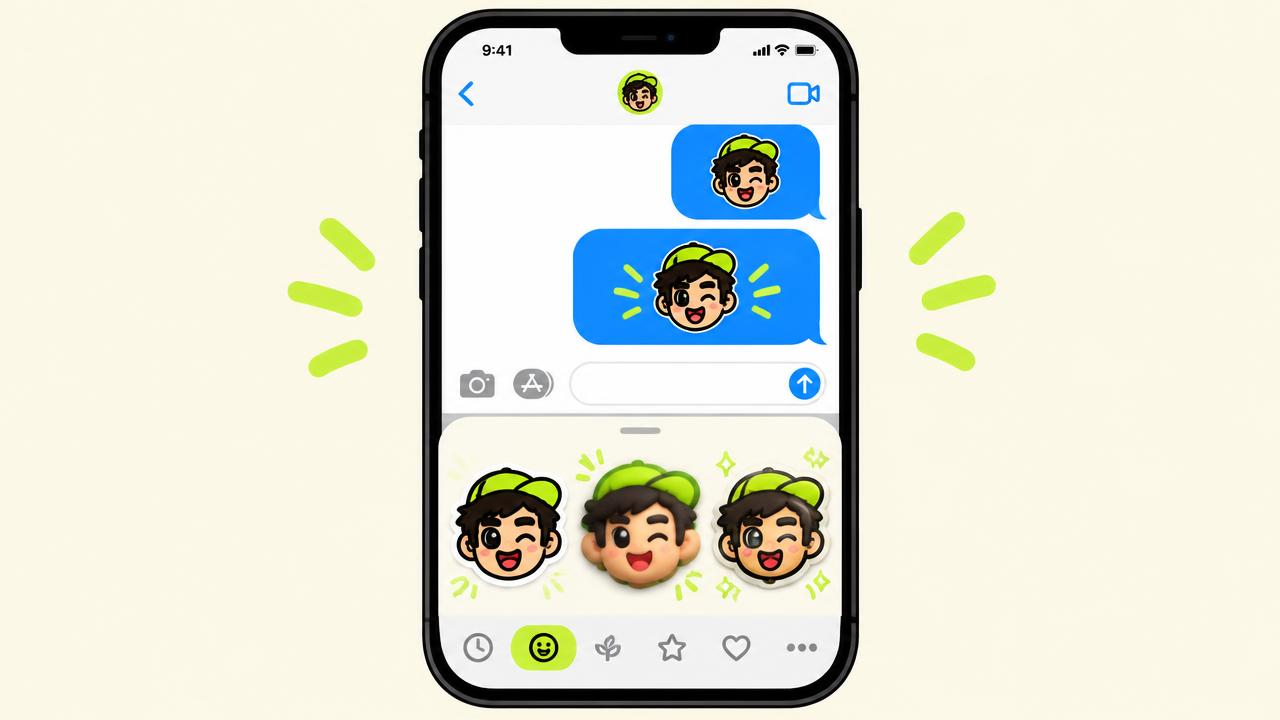
Open the sticker drawer
In a Messages conversation, tap the plus button on the left of the text field and choose Stickers. On iOS 17 and later this opens your sticker drawer.
Create a sticker from a photo
Tap New Sticker, pick a photo, and your iPhone lifts the subject off the background automatically. You can then add effects: Outline, Comic, Puffy or Shiny. Outline is the classic sticker look.
Live Stickers from Live Photos
If you pick a Live Photo, iOS can turn it into an animated Live Sticker that plays a short loop when you send it.
Want the same stickers in WhatsApp?
iMessage stickers stay inside iMessage. For WhatsApp you need a separate pack: STIKME turns one selfie into 10 stickers you can send in any WhatsApp chat, with captions in your language.